Live Demo
Anatomy
Tooltips can display definitions, clarifications, or hints. Use tooltips for text that is nonessential to the user journey
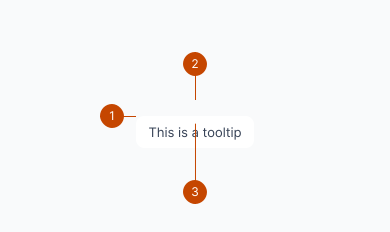
- Label
- Container
- Tip
Layout
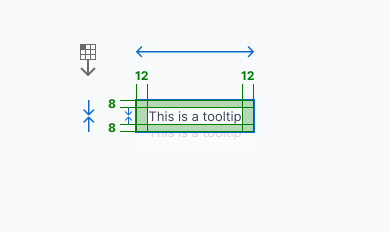
- Padding top: 8
- Padding bottom: 8
- Padding left: 12
- Padding right: 12
Placement
A tooltip is positioned in relation to its target. Placement property values are at the: top, top left, top right, top start, top end, bottom, bottom left, bottom right, bottom start, bottom end, left, left top, left bottom, start, start top, start bottom, right, right top, right bottom, end, end top, end bottom. The default placement value is at the top.
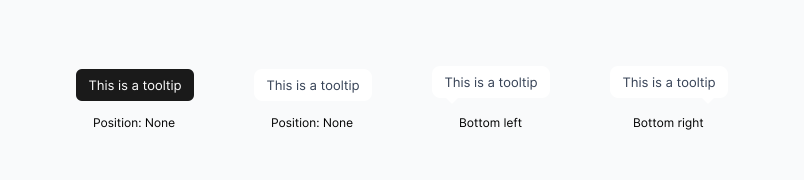
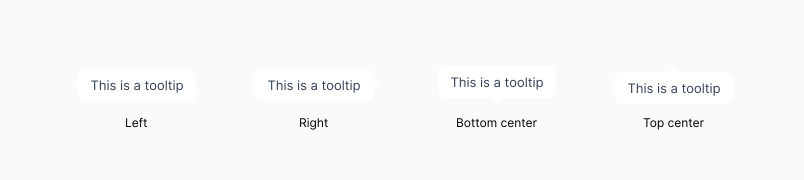
Moreover, automatic adjustment of placement can be configured to prevent tooltips from being obscured by container boundaries or the browser edge.
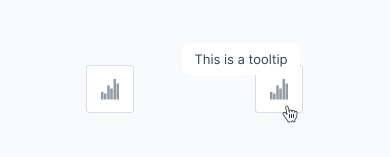
Tooltips to describe icons
Icons are not always easy to identify on their own. When you use components that don’t have labels — for example, icon-only action buttons and tabs — make sure to use tooltips to provide context for the icons.
Guidelines
- Refrain from concealing vital content within tooltips.
- Ensure tooltips stay within container limits and page boundaries.
- Exclude multimedia content like videos or images from tooltips.
- Avoid simultaneous display of multiple tooltips.
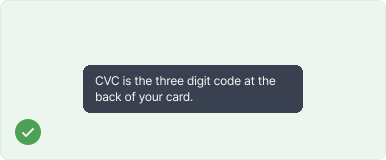
Text inside tooltips has to be concise.
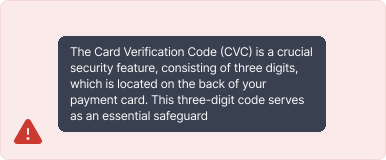
Avoid long text in tooltips.
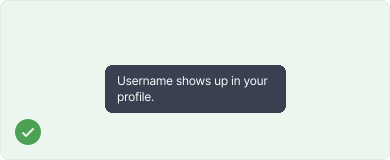
Tooltips should be used for assistive information.
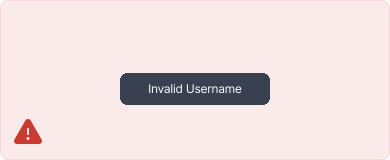
Avoid tooltips for showing errors.